Posts for: #Brunnhilde

Lab 07 Key

Lab Guidance and Solutions

Problem 1: Create directories to use for the reports, which will be the basis of your PDI.

Use the mkdir command to make two new directories in the course files folder, one titled sf_out and the second br_out.

Problem 2: Running Siegfried. Siegfried is a useful tool to create an inventory and a bulk process for file characterization information. Run the command on the PKG-web-files-small directory and output the reports to the sf_out directory.

[Read more]

Lab 07: File Characterization with Siegfried and Brunnhilde

This week’s lab questions are prompts that aim to guide you in the file inspection process and to reflect on the information that you can glean in this process. The problems below are designed to run on the course files, which you have previously downloaded, and that the directory is named si667-2026-main.

Note: this guide page on the course activities site demonstrates using Siegfried and Brunnhilde for file reporting and characterization.

[Read more]

Installing & Running Brunnhilde on Windows

Brunnhilde is a companion tool to Siegfried, and Brunnhilde is very useful in creating reports from the inventory and file characterization data that Siegfried creates. While perhaps not essential, it is at this time a highly useful tool that can create reports that are useful for overall analysis of the files you’re working with, as well as a report to keep with the files as useful technical and provenance metadata.

Installation Step-By-Step

  1. Before you install Brunnhilde, you must have Python 3 installed and running. This is likely ready to go if you have completed SI 506. If not, you may need to do that first. Instructions for setting up Python 3 can be found here and here. If you prefer to run in a virtual environment, you can also do that. Once Python 3 is ready, proceed to the next step.
  2. Open up Visual Studio Code, and open a new Terminal pane there.
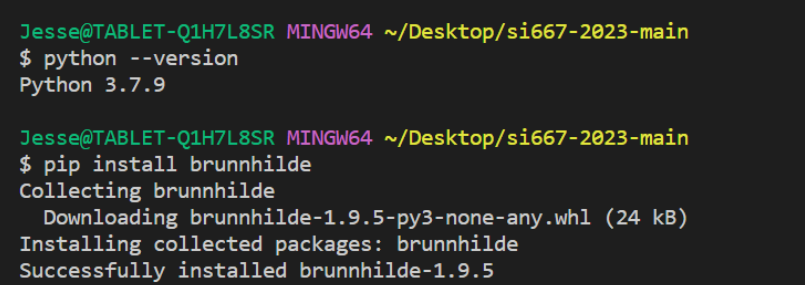
  3. At the terminal prompt, you can use the pip command to install Brunnhilde: pip install brunnhilde.
    If this doesn’t work, you can try running pip as a module thus: $ python -m pip isntall brunnhilde. Installing brunnhilde using python pip install
  4. Now, you can call brunnhilde with the command brunnhilde.py [arguments] as you would other python programs.
    Note that you may need to run this as a “module”, something like this:
    python -m brunnhilde [arguments]
[Read more]

Running Siegfried & Brunnhilde

This page contains the instructions for running tools that can help with file reporting. These are useful tools that can create some of the preservation description information, which might accompany an information package, and to create technical information that can be used for tracking file integrity and duplication.

Setup

The following sections show how to get set up to run the file reporting tools.

Sample Files

All of the activities will use the course’s sample files, which you should have previously downloaded during class in January. If you didn’t download them, have lost those files, or want a new copy, they are located in the course github repository, and you can download them all directly as a zip file at https://github.com/morskyjezek/si667-2026. Unzip that folder somewhere on your computer, for example in your Desktop or Documents folder. This should result in a folder named si667-2026-main, which will match the demonstrations below. (Nota bene: the screencasts below were recorded in 2023 and 2024, so some of the sections in the videos may show those years in its name, but assume any paths or other references should be to 2026.)
[Read more]